A packet is what you send a client before their first session: documents to read and sign, questions to answer, and files to send you. Answer a few questions about your practice and Pablo puts one together for you.
Open Settings > Client portal. Under Packets, choose Build one for me.
1. Tell Pablo about your practice
Under About your practice, answer the questions: your State, whether you see clients by Telehealth, whether you see Minors, how clients pay, whether you prescribe, and whether you've opted out of Medicare. Focus is optional: your specialties, in a few words.
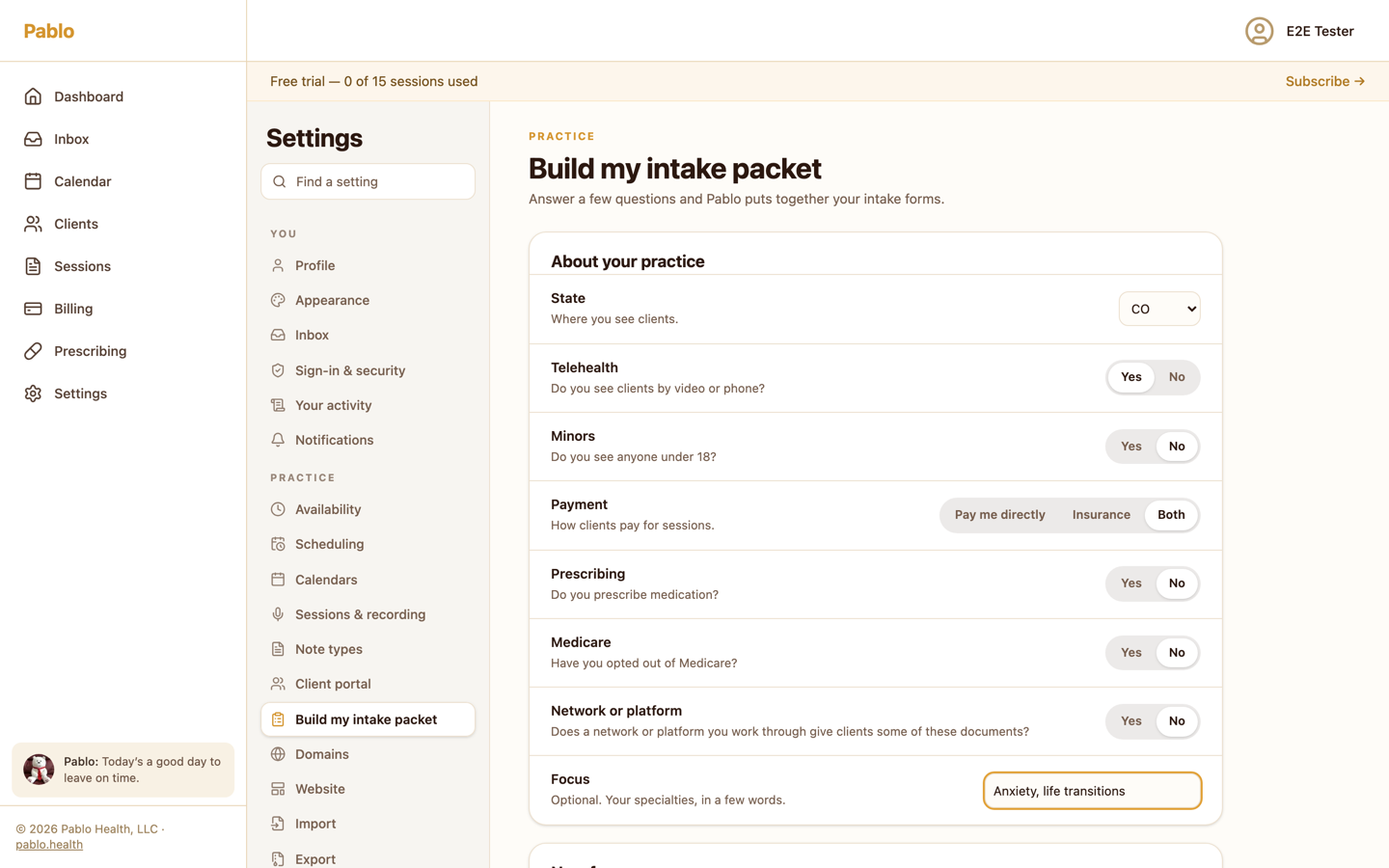
If you work through a network or platform that already gives your clients some documents, answer Yes to Network or platform and tick the ones it gives them.
2. Add your own (optional)
Under Add your own, Pablo drafts anything else you want in the packet. Each one becomes a part of it:
- Describe it, for example a medication history questionnaire for new clients.
- Paste it: a form you use now.
- Upload it: PDF, Word or text, one form per file.
You can add up to three. Pablo reads scanned PDFs too, up to 30 pages each.
Choose Build my packet. It can take a couple of minutes. If something is missing, such as your state, Pablo says what and takes you to it.
3. Review your packet
Your intake packet lists every item, each with a tag and the reason it's there:
- Required: something your answers call for, such as a Notice of Privacy Practices acknowledgement, consent to treatment, or consent to telehealth if you see clients by video or phone. Required items stay in.
- Recommended: suggestions for a practice like yours. Untick any you don't want.
- Created for you: what Pablo drafted from your description or your upload. Read each one before you publish.
- Provided elsewhere: documents your network or platform already gives your clients.
Choose Preview on any item to see what your clients will see, or Edit to change its wording or questions.
If you've opted out of Medicare, your packet includes a Medicare private contract. Fill in your Opt-out start date and Opt-out end date, and confirm I am not excluded from Medicare. before you publish.
4. Publish
Under Packet name, name the packet and choose Publish. Anything still incomplete is listed under Before you publish, and choosing it takes you there. Nothing is saved until you publish. Start over clears your answers.
Choose Open your packet. It opens under Packets, where you edit it from now on.
Change it later
Open the packet under Packets:
- Rename it under Packet name. Under Title clients see, give it the title your clients see in their portal.
- A published version can't change. Choose Start a new version, make your changes, then Publish it.
The documents your packets ask clients to sign are under Documents in your packets. Editing one starts a new version, and clients who already signed keep the version they signed.
To send a packet, open a client's chart and choose Send a packet. See What your client sees.